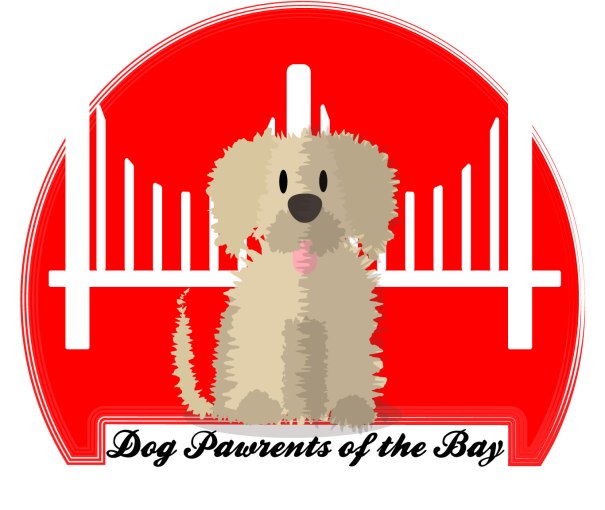
I created a logo using Adobe Illustrator. If you’re in a hurry, please know that this is the final result:
If you’re going to read the process behind it, welcome! When I started, I wasn’t prepared for my mind to jump from one idea to the next, doodling ideas before deciding on the design I wanted.
As usual, inspiration hit me with crazy ideas, some so elaborated that I knew I could never be able to make them a reality. And, KISS! Simple was the goal! For a moment I had decided against including the bridge, thinking it was too cliched. But as I’ve said before, is there anything more iconic to this city than our beloved GG?
A logo is worth a 1000 words
The readings and videos made one thing very clear: logos are uniquely important. Even the simplest logo is everything when done right. As this FX article mentions, simplicity is always a win-win solution. Which is why, after going through all of these ideas in my head, like these:
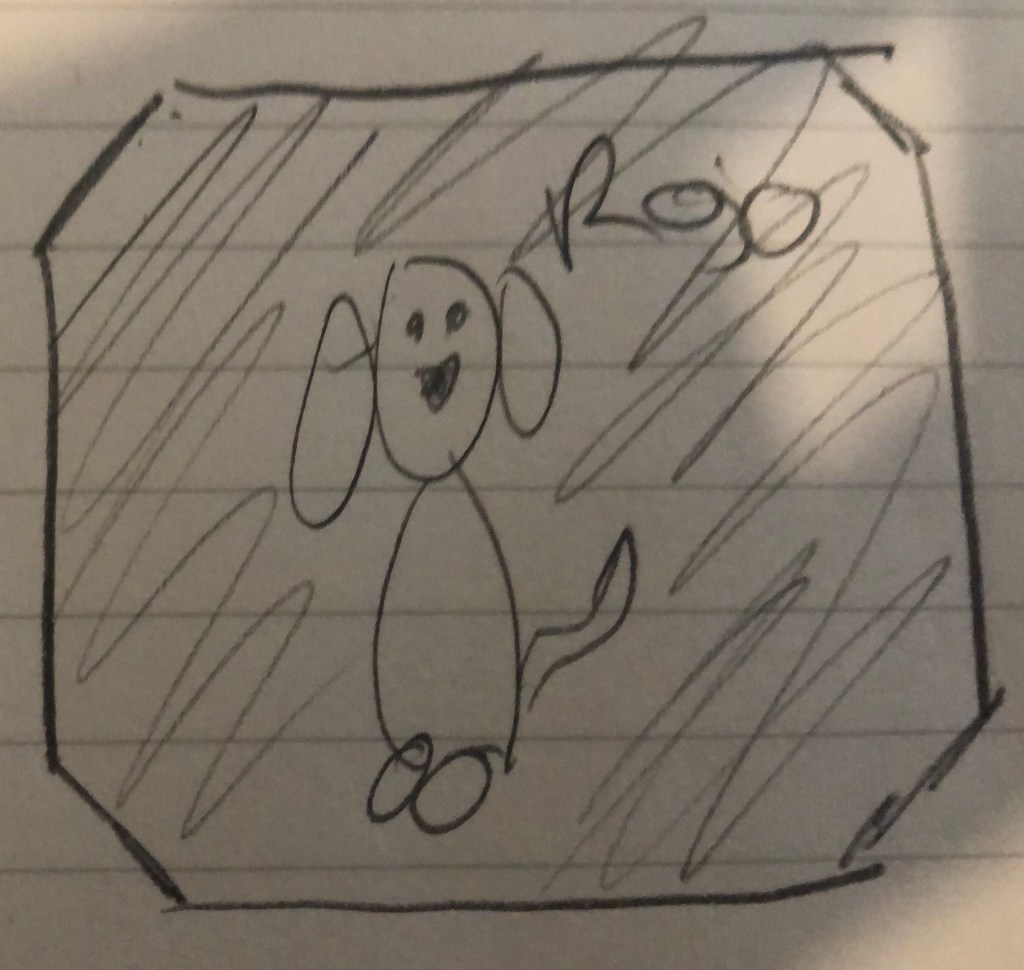
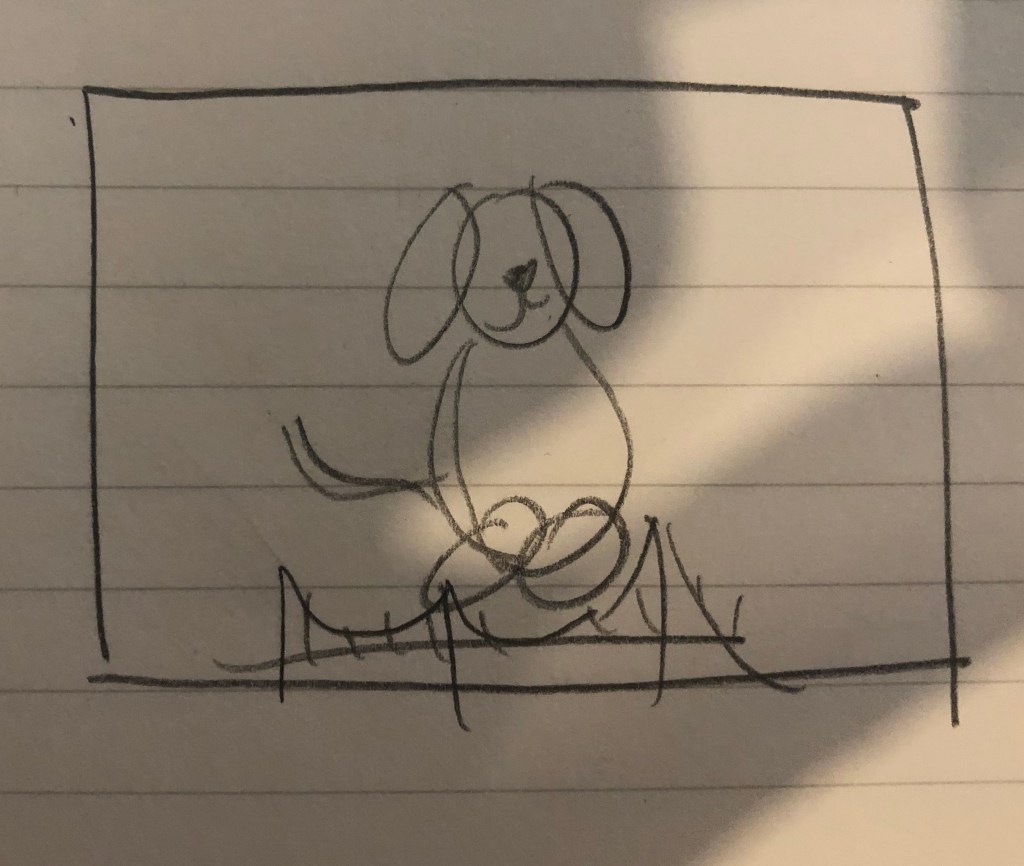
I ended up with this hand made draft:
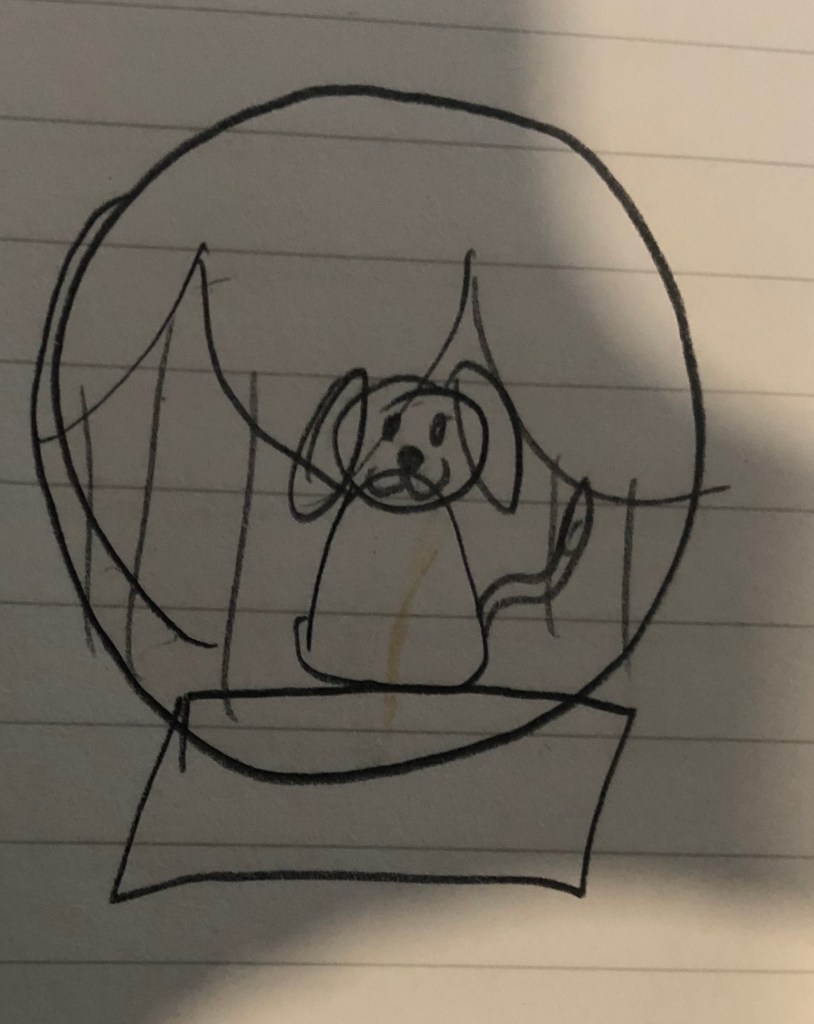
The Dog Pawrents of the Bay logo
The logo I finally decided to make has 4 main components: a bold background color, two shapes and text.
- The red background: As I type, I am not 100% sold on using such a bold hue of red because I know it can be too much. On the other hand, red gets attention and is directly related to my topic.
- The Golden Gate silhouette: I could not not use it. This human loves dogs, puns and clichés, ok?
- A fluffy dog: Drawing a “fluffy” flat shape was also fun to play around with Illustrator.
- The name of the Blog: Again, not sold. Should it stay or should it go?
Illustrator, we meet again.
The process of this logo was more straightforward than the making of my Photoshop graphic design because I had a clear idea.
First, the background. As you can see from my hand-drawn doodles, the idea was to use a squared background but while researching logo design, I came across an article that said that circles in logo design projected a positive emotional message. Since this blog is meant to be cheerful, I decided to use a circle to ground my logo.
I made a draft of the draft with Illustrator and this is what I ended up with:
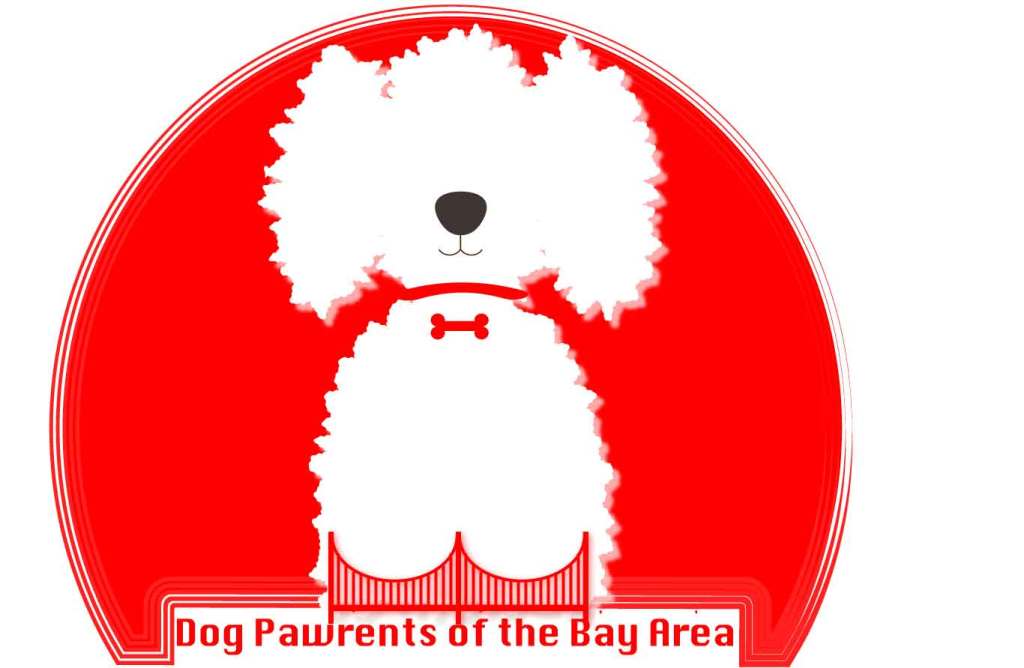
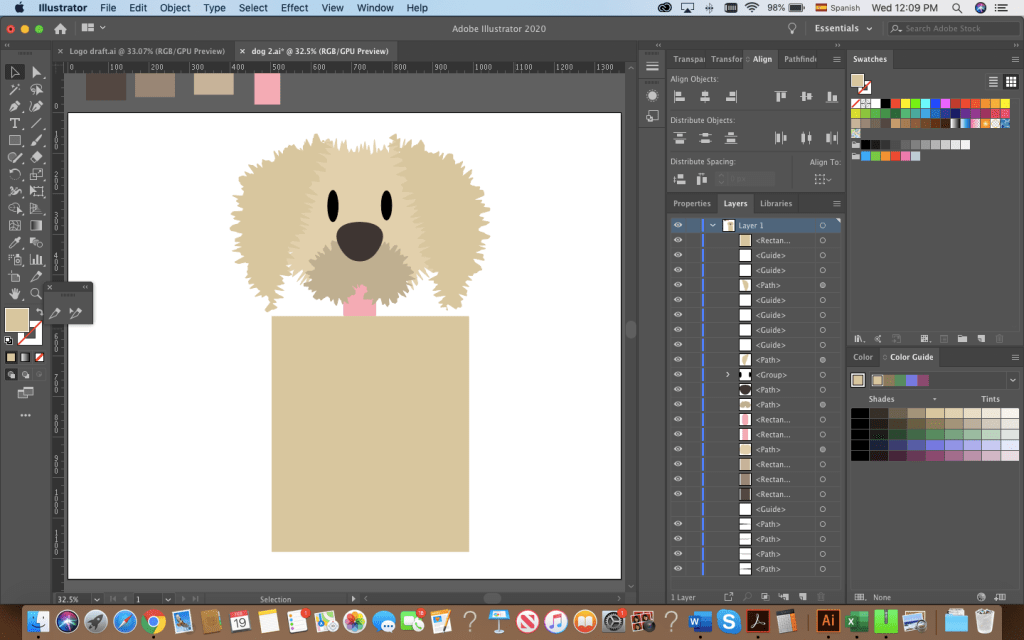
I used the ellipse tool to shape the dog’s body, head and ears. Originally, I started adding anchor points and trying to create the “fluffy dog effect” with the pen tool.
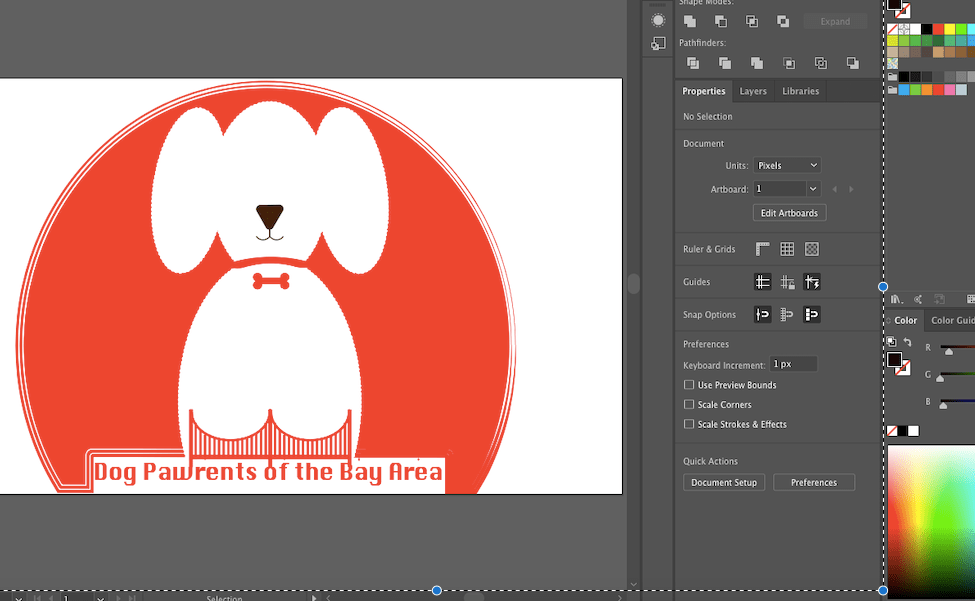
After distorting the drawing, I clicked around and found that the distorting effect “Roughen” achieved the look I wanted. I then used the pen tool to draw the nose and mouth. By creating 4 circles, aligning them and joining them with a rectangle, I created the bone-shaped tag. I used the shape builder to adjust it to my liking. Then, I added the bridge at the bottom of the dog. Originally, I intended to make my logo red and white, remembering the reading on the effective use of Figure and Ground. Hence, I had originally added a small drawing of the bridge at the bottom.
The perfect dog?
After sleeping on it and re-watching the tutorials from last week, I decided I had to:
a) Draw a better dog
b) Balance the bridge and dog
Hours of Illustrator fun resulted in this, the final draft of my logo:
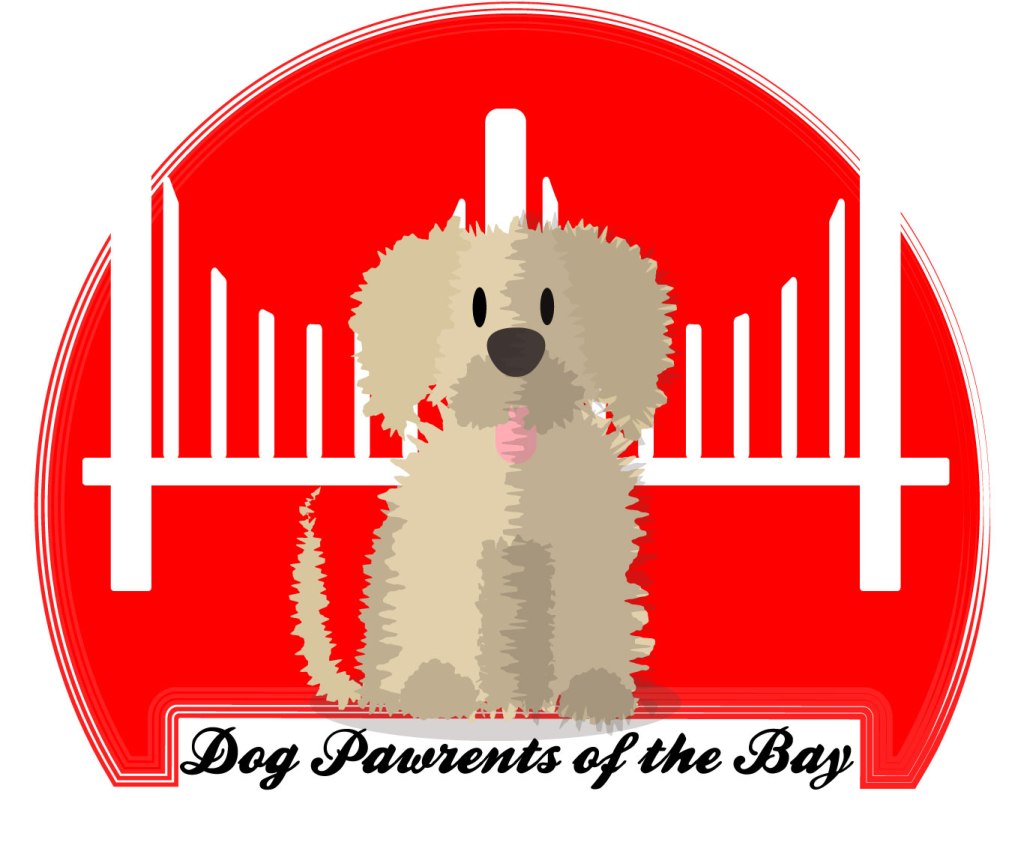
The bridge was simple! I started by making 3 large rectangles, aligning and distributing them. I then created and aligned the smaller poles of the bridge and I drew a circle on top to make the shape of the bridge by using the shape builder tool.

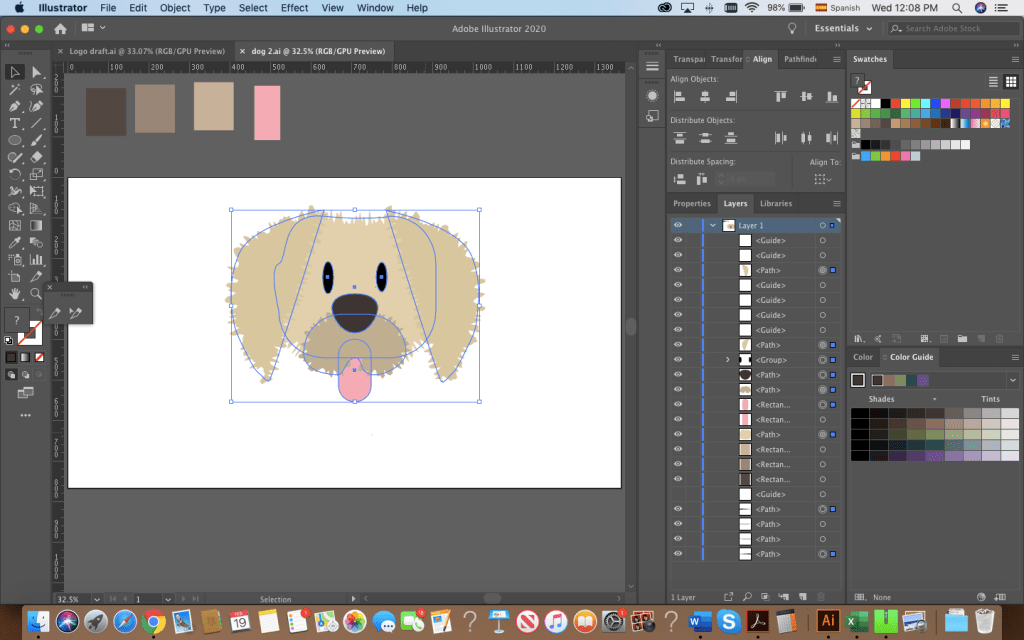
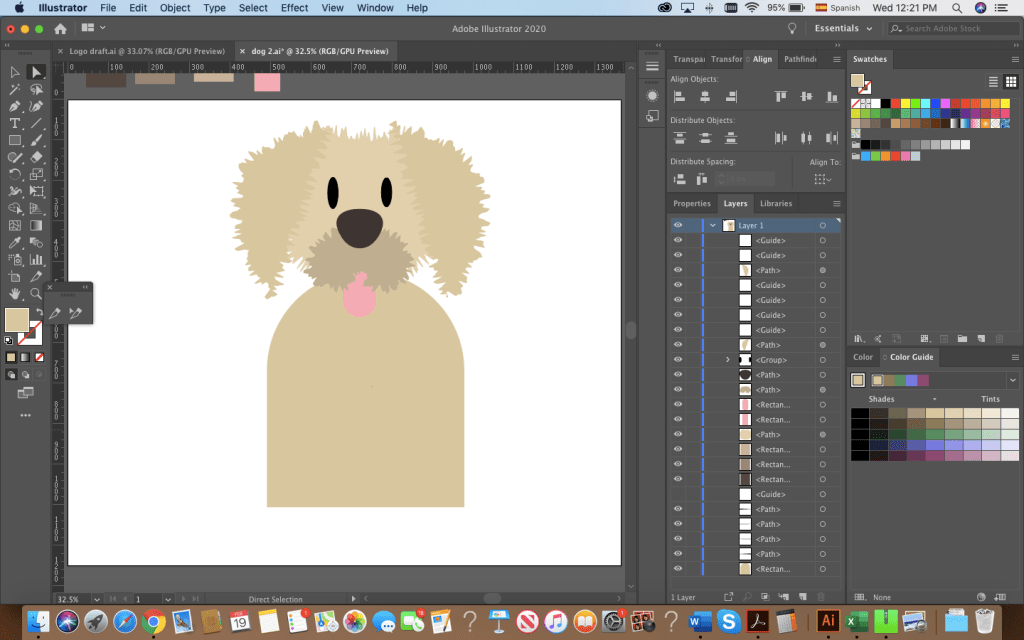
The fluffy dog was easier to draw after having experimented with the shapes, the roughen effect and the pen tool. The most time-consuming part was the head. I started with a circle for the head, ovals for the snout, eyes and tongue. I drew the ears by using the pen tool. Drawing this dog made me appreciate the align and distribute feature for sure! There were some irregularities to my design’s outline, but with the roughen effect and the combination of shapes I was able to get the look I wanted.
The body and paws followed the same process: shapes or drawings made with the pen tool. I used the shape builder to make the tail by overlapping 2 circles.

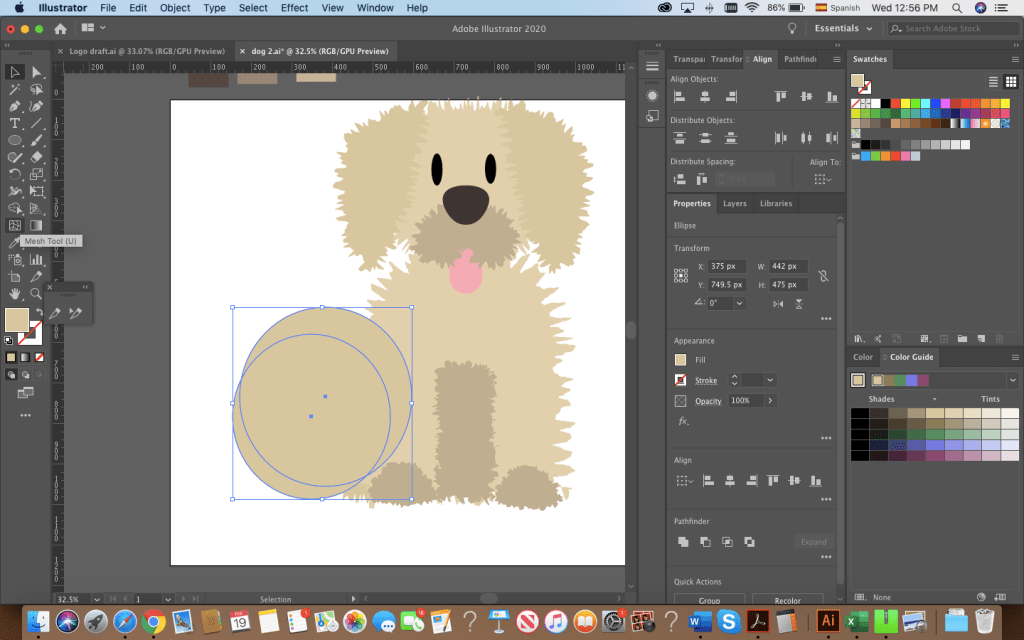
Originally, I had added the text and left it at that but it felt too flat. I grouped all the shapes that made up my dog, created a copy, drew a rectangle in a greyish tone on top and used the shape builder to create a shaded side of the puppy. I brought the opacity down to 30% to layer the effect and finished with a small gray ellipse at the bottom.
What do you guys think? There are a lot of things I would still like to change but I’m happy to say, I’m satisfied with this draft.
Wags and kisses,
Karla
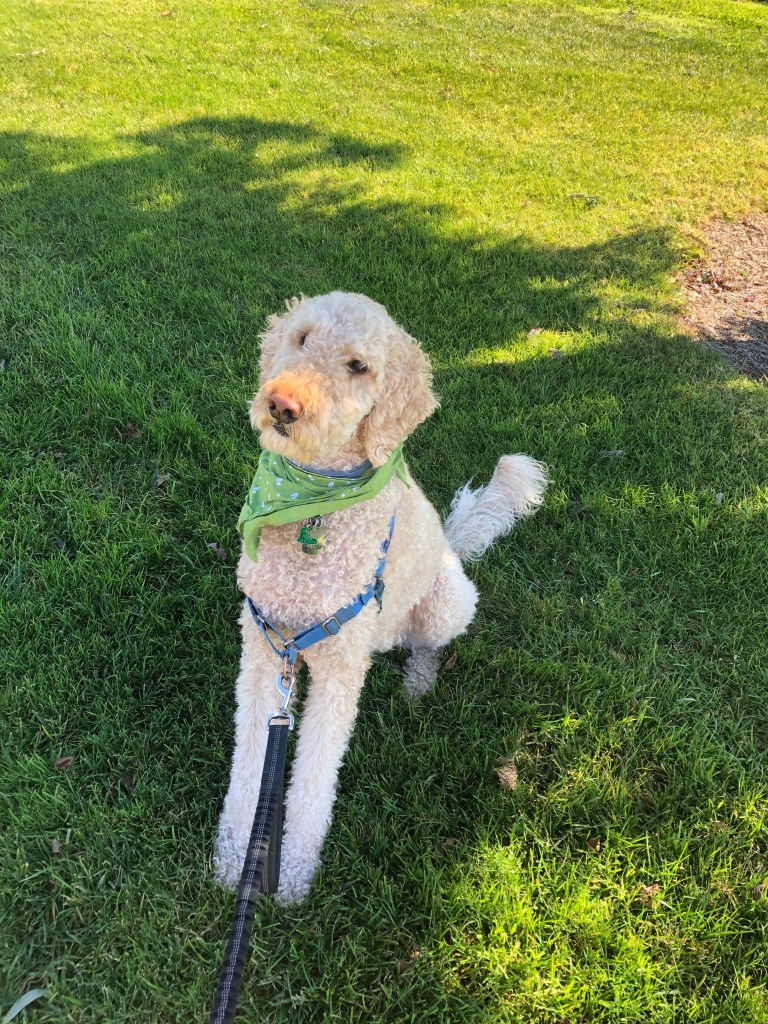
P.S. Mocha approves!
 Dog Pawrents of the Bay Area
Karla,
I love this! The detail on fluffy dog is amazing. You very well could have left it at the original one where you used the anchor points but you challenged yourself! And it paid off and it looks awesome. Even the contrast in shade on the dog just gives it that much more life and from afar you can really make out what it is. The bridge is really cool and I like it as the backdrop. I think the bridge bars are not scaled on either side (not symmetrical) but that is an easy tweak you can utilize the ruler and grid or even just copy paste as long as the image is not grouped. I love your text! Simply for scalability reasons I think using font without cursive always helps to read it (Ex. reading it on an instagram icon). That’s a simple fix though and you could play around with some bold fonts!
Lizzie
LikeLike
Hi Karla,
This is such a cute logo! (No wonder Mocha approves!) The figure/ground elements in the bridge is really effective here, and I like the bold colors.
I agree about the need to include the bridge. It’s such a great icon, and it immediately connects the logo to the bay area. I must say though, I didn’t recognize the bridge at first. The pictures I’ve seen generally show that bridge with two towers instead of three and I strongly associate the Golden Gate with the color red, so I originally assumed this was the Oakland bridge. Once I realized the colors were inverted, I made the connection.
The dog is adorable, and you did a great job making it look friendly and fluffy! I might just point out the shadow on the tongue is textured as if it is furry instead of smooth. It’s really subtle, and I might not have noticed if I didn’t have a Newfoundland who drools a lot.
Zack
LikeLike
Karla, your graphic is so cute! Your image really portrays the likeness of your dog, Mocha. Adding that texture to her really makes it a little more than two-dimensional. The bridge also stands on its own and you can tell that it is in fact, the Golden Gate Bridge. I will say though, that the lines directly behind Mocha are not even, but I think you could easily line that up in your final draft. Also, Mocha’s tongue has a little shadow on it. Not sure if it is meant to look like the fur or if you meant it to look like drool was coming out. If it’s drool, then I would try adjusting the opacity. For your text, I would probably do a sharper, bolder font just because cursive can get a little distorted. I had the same problem. Overall, it looks like the start of a good design, glad Mocha approves!
LikeLike
Hi Karla!
This is such a cute logo – and I actually like the red you chose! I also enjoyed seeing your sketches and the different iterations you made of the logo.
I’m definitely glad you chose to incorporate the bridge and to incorporate it so prominently, however, I didn’t recognize it as the Golden Gate at first. I assumed based on the blog name and reading your other posts, but this wasn’t the recognizable Golden Gate silhouette I’m used to.
Additionally, the inner poles of the bridge aren’t quite aligned to one another and the base of your bridge is just slightly longer on the right side of your circle than on the left. I like the feel of the base of the bridge on the right side, it makes it feel like the bridge keeps going.
I love how you drew the fluffy dog and that he is the center of the logo. He also scales nicely. I like the shadowing you did on him as well. However, the rough and fluffy shadowing is falling over his tongue. While more noticeable at larger sizes, I would move the tongue layer on top of the shadowing.
I can’t wait to see the finished piece!
–Leann
LikeLike